Campaign Criteria - Advanced Tab
The Advanced tab is used to define criteria when searching for customers to add to a sales campaign. This tab includes the options available on the Basic tab, as well as additional options that can be used to further customize the search for customers.

|
To access the Advanced tab, select the Advanced tab on the Campaign Criteria panel. |
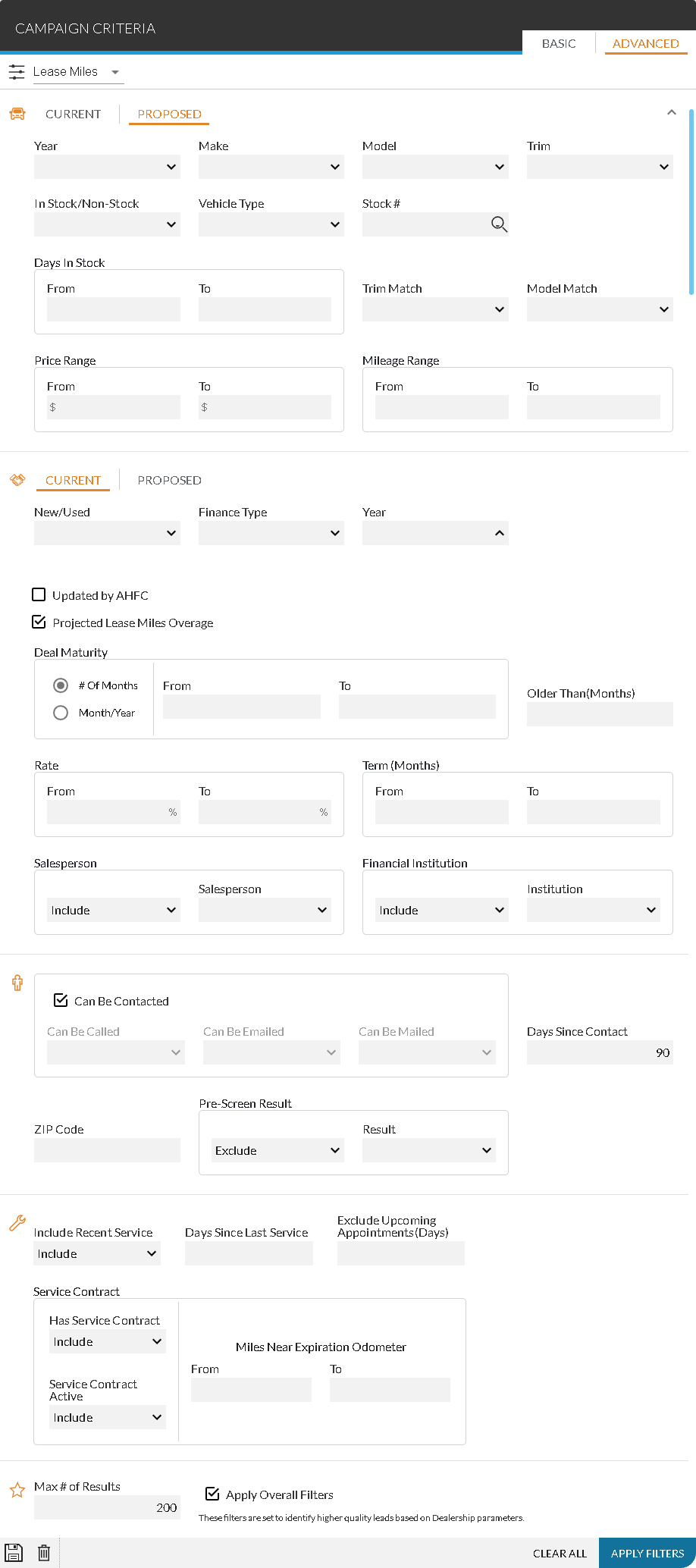
Once all entries have been made, click the APPLY FILTERS button to display matching customers in the Results panel, where the customers can be added to a sales campaign.
This panel can also be used to save the entered search criteria. Saved searches are called Quick Campaigns and can help to reduce the amount of time required to search for customers to include in a sales campaign. To save the entered criteria, click the  (Save Search) icon. The Add Quick Search window displays. Enter a name for the quick campaign in the Quick Search Name field. To display the saved search as a quick campaign at the top of the Sales Campaign screen, select a rank in the Rank field. Then click the SAVE button to save the quick campaign.
To delete a quick campaign, display the campaign on the Campaign Criteria panel and click the  (Delete) icon. A message window displays confirming the deletion. Click the DELETE button to remove the campaign from the XtreamService application.
 Vehicle Information Section
The Vehicle Information section is used to enter search criteria based on the vehicles associated with proposals. Users can search by owned vehicles using the Current option or by suggested vehicles using the Proposed option.
The following items are available in the Vehicle Information section.
Year: Select the model year of the vehicles to include in the search. Click the  (Down Arrow) icon to display a list of valid entries. Multiple selections can be made in this field.
Make: Select the make of the vehicles to include in the search. Click the (Down Arrow) icon to display a list of valid entries. Multiple selections can be made in this field.
Model: Select the model of the vehicles to include in the search. Click the (Down Arrow) icon to display a list of valid entries. Multiple selections can be made in this field.
Trim: Select the trim level of the vehicles to include in the search. Click the (Down Arrow) icon to display a list of valid entries. Multiple trim levels can be selected in this field.
The following items are available when the Current option is selected.
Equity Range - Dollar: Select this option button to search for vehicles based on the equity value of the customers' current vehicles in dollars.
Equity Range - Percentage: Select this option button to search for vehicles based on the equity value of the customers' current vehicles as a percentage.
Equity Range - From: Enter the lowest equity value in a range of values for customers' current vehicles. Leave this field blank to indicate that no minimum dollar amount or percentage should be applied.
Equity Range - To: Enter the highest equity value in a range of values for customers' current vehicles. Leave this field blank to indicate that no maximum dollar amount or percentage should be applied.
Mileage Range - From: Enter the lowest mileage in a range of vehicle mileages for customers' current vehicles. Leave this field blank to indicate that no minimum mileage amount should be applied.
Mileage Range - To: Enter the highest mileage in a range of vehicle mileages for customers' current vehicles. Leave this field blank to indicate that no maximum mileage amount should be applied.
Book Value Range - From: Enter the lowest book value in a range of book values for customers' current vehicles. Leave this field blank to indicate that no minimum book value should be applied.
Book Value Range - To: Enter the highest book value in a range of book values for customers' current vehicles. Leave this field blank to indicate that no maximum book value should be applied.
The following items are available when the Proposed option is selected.
In Stock/Non-Stock: Select whether to include in stock or non-stock vehicles in the search. In stock vehicles are vehicles that the dealership currently has in stock that have the same make, model, and trim as the customers' current vehicles. Non-stock vehicles are vehicles that the dealership currently does not have in stock, but can be ordered. Click the (Down Arrow) icon to display a list of valid entries.
Vehicle Type: Select the stock type for the proposed vehicles to include in the search, such as New or Used. Click the (Down Arrow) icon to display a list of valid entries.
Stock #: Enter the stock number for the proposed vehicle.
Days In Stock - From: Enter the minimum number of days in a range of days that proposed vehicles to include in the search have been in stock at the dealership. Leave this field blank to indicate that no minimum number of days should be applied.
Days In Stock - To: Enter the maximum number of days in a range of days that proposed vehicles to include in the search have been in stock at the dealership. Leave this field blank to indicate that no maximum number of days should be applied.
Trim Match: Select whether the trim level of the proposed vehicles included in the search should match the trim level entered in the Trim field. Click the (Down Arrow) icon to display a list of valid entries.
Valid entries include:
- Similar Trims. Select this option to search for proposals with vehicles that have trim levels similar to the entry in the Trim field.
- Other Trims. Select this option to search for proposals with vehicles that have other trim levels that do not match the entry in the Trim field.
- Space. Leave this field blank to include all trim levels.
Model Match: Select whether the model of the proposed vehicles included in the search should match the model entered in the Model field. Click the (Down Arrow) icon to display a list of valid entries.
Valid entries include:
- Similar Model. Select this option to search for proposals with vehicles that are the same model as the entry in the Model field.
- Other Model. Select this option to search for proposals with vehicles that are not the same model as the entry in the Model field.
- Space. Leave this field blank to include all models.
Note - Some vehicle models are not eligible for model matching.
Price Range - From: Enter the minimum price in a range of prices of the proposed vehicles to include in the search. Leave this field blank to indicate that no minimum price should be applied.
Note - The type of vehicle price, such as list price or manufacturer suggested retail price (MSRP), entered in this field is defined using the Inventory Price Settings panel on the General Settings screen.
Price Range - To: Enter the maximum price in a range of prices of the proposed vehicles to include in the search. Leave this field blank to indicate that no maximum price should be applied.
Note - The type of vehicle price, such as list price or MSRP, entered in this field is defined using the Inventory Price Settings panel on the General Settings screen.
Mileage Range - From: Enter the lowest desired mileage in a range of mileages for the proposed vehicles to include in the search. Leave this field blank to indicate that no minimum mileage should be applied.
Mileage Range - To: Enter the highest desired mileage in a range of mileages for the proposed vehicles to include in the search. Leave this field blank to indicate that no maximum mileage should be applied.
Deal Information Section
The Deal Information section is used to enter search criteria based on deals associated with customers. Users can search by current deals by selecting the Current option or by suggested deals by selecting the Proposed option.
The following items are available in the Deal Information section.
Finance Type: Select the deal type for the current or proposed deals to include in the search, such as Cash or Finance. Click the (Down Arrow) icon to display a list of valid entries.
Rate - From: Enter the lowest interest rate for current or proposed deals to include in the search. Leave this field blank to indicate that no minimum interest rate should be applied.
Rate - To: Enter the highest interest rate for current or proposed deals to include in the search. Leave this field blank to indicate that no maximum interest rate should be applied.
The following items are available when the Current option is selected.
New/Used: Select the stock type for current vehicles to include in the search, such as New or Used. Click the (Down Arrow) icon to display a list of valid entries.
Year: Select the year during which current deals to include in the search should be completed. Click the (Down Arrow) icon to display a list of valid entries.
Updated by AHFC: Select this check box to search only for deals for which finance or lease information has been updated using information from the American Honda Financial Corporation (AHFC).
Note - This check box is only available at dealerships with a verified Honda READS account. For more information about the Honda READS program, contact XtreamService Support. To access support information, click the  (More) icon and then click the Contact Support link.
Projected Lease Mile Overage: Select this check box to search only for customers who are projected to exceed their contracted miles when their lease expires.
Deal Maturity - # Of Months: Select this option button to search for customers based on the number of months remaining on the current deal.
Deal Maturity - Month/Year: Select this option button to search for customers based on the month and year during which the current deal should be completed.
Deal Maturity - From: Enter the minimum number of months in a range of months remaining on current deals. Leave this field blank to indicate that no minimum number of months should be applied.
Note - This field is only available when the Deal Maturity - # Of Months option button is selected.
Deal Maturity - To: Enter the maximum number of months in a range of months remaining on customers' current deals. Leave this field blank to indicate that no maximum number of months should be applied.
Note - This field is only available when the Deal Maturity - # Of Months option button is selected.
Deal Maturity - Month: Select the month during which current deals are scheduled to be completed. Customers whose current deals were completed during the selected month are included in the search. Click the (Down Arrow) icon to display a list of valid entries.
Note - This field is only available when the Deal Maturity - Month/Year option button is selected.
Deal Maturity - Year: Select the year during which current deals are scheduled to be completed. Customers whose current deals were completed during the selected year are included in the search. Click the (Down Arrow) icon to display a list of valid entries.
Note - This field is only available when the Deal Maturity - Month/Year option button is selected.
Older Than (Months): Enter the minimum number of months since the original deal date. Customers with deals newer than the entered number of months are not included in the search.
Term (Months) - From: Enter the minimum deal term in a range of months for the current deal to include in the search. Leave this field blank to indicate that no minimum deal term should be applied.
Term (Months) - To: Enter the maximum deal term in a range of months for the current deal to include in the search. Leave this field blank to indicate that no maximum deal term should be applied.
Salesperson - Include/Exclude: (Not labeled) Select whether the salespeople entered in the Salesperson field should be included in or excluded from the search. Click the (Down Arrow) icon to display a list of valid entries.
Salesperson: Select the salesperson that completed the deals to include in or exclude from the search. Multiple Salespeople can be selected using this field. Click the (Down Arrow) icon to display a list of valid entries.
Financial Institution - Include/Exclude: (Not labeled) Select whether the financial institution entered in the Institution field should be included or excluded from the search. Click the (Down Arrow) icon to display a list of valid entries.
Institution: Select the financial institution used to finance vehicles. Customers who financed their vehicles using this financial institution are either included or excluded from the search based on the entry in the Financial Institution - Include/Exclude field. Click the (Down Arrow) icon to display a list of valid entries.
The following fields are available when the Proposed option button is selected.
Term (Months): Enter the deal term, in months, for the proposed deals to include in the search.
Term Match: Select whether the term for the proposed deals to include in the search should be longer than, shorter than, or of similar length to current deals. Leave this field blank to include all deal terms.
Prediction Indicator: Select a lead prediction indicator, such as Good or Great, to include in the search.
Payment Variance Range - From $: Enter the minimum dollar amount in a range for a payment variance on the proposed deals to include in the search. Leave this field blank to indicate that no minimum dollar amount should be applied.
Payment Variance Range - To $: Enter the maximum dollar amount in a range for a payment variance on the proposed deals to include in the search. Leave this field blank to indicate that no maximum dollar amount should be applied.
Payment Variance Range - From %: Enter the minimum percentage in a range for a payment variance on the proposed deals to include in the search. Leave this field blank to indicate that no minimum percentage should be applied.
Payment Variance Range - To %: Enter the maximum percentage in a range for a payment variance on the proposed deals to include in the search. Leave this field blank to indicate that no maximum percentage should be applied.
Non-Deal Opportunities: Select whether Equity proposals and Market Value proposals should be included in the search results. Click the (Down Arrow) icon to display a list of valid entries.
Customer Information Section
The Customer Information section is used to enter search criteria based on the methods by which customers can be contacted.
The following items are available in the Customer Information Section.
Can Be Contacted: Select this check box to include in the search customers who can be contacted using any method. Clear this check box to define specific methods of contact to include in the search. When this check box is cleared, the Can Be Called field, the Can Be Emailed field, and the Can be Mailed field become available.
Can Be Called: Select customers to include in the search based on whether they can be contacted by telephone. Click the (Down Arrow) icon to display a list of valid entries.
Can Be Emailed: Select customers to include in the search based on whether they can be contacted using Email messages. Click the (Down Arrow) icon to display a list of valid entries.
Can Be Mailed: Select customers to include in the search based on whether they can be contacted using direct mail. Click the (Down Arrow) icon to display a list of valid entries.
Days Since Contact: Enter the minimum number of days since the last contact with the customer was made. Customers who have been contacted more recently than the number of days entered in this field are not included in the search.
Zip Code: Enter the ZIP code for customers to include in the search.
Include/Exclude: (Not labeled) Select whether the pre-screen results entered in the Result field should be included or excluded from the search. Click the (Down Arrow) icon to display a list of valid entries.
Note - Pre-screen results are only available if FOCUS or the Customer application
Result: Select the result received from the pre-screen request. Customers who received this result from their pre-screen requests are either included or excluded from the search based on the entry in the Include/Exclude. Click the (Down Arrow) icon to display a list of valid entries.
Note - Pre-screen results are only available if FOCUS or the Customer application
Service Information Section
The Service Information section is used to enter search criteria based on the customers' service contract and upcoming service appointments.
The following items are available in the Service Information section.
Include Recent Service: Select whether to include customers who have had service on a vehicle within the number of days entered in the Days Since Last Service field in the search results.
Days Since Last Service: Enter the number of days for which to include customers with recent service on a vehicle in the search results. Customers with service history more recent than the entered number of days are not included in the search results.
Exclude Upcoming Appointments (Days): Enter the number of days for which to exclude customers with upcoming service appointments from the search results. Customers with appointments scheduled within the entered number of days are not included in the search results.
Has Service Contract: Select whether to include customers with service contracts for their current vehicles in the search results.
Service Contract Active: Select whether to include customers with active service contracts in the search results.
Note - This field is only available if Include or Only is entered in the Has Service Contract field.
Miles Near Expiration Odometer - From: Enter the minimum number of miles remaining on customers' service contract to be included in the search results. Leave this field blank to indicate that no minimum number of miles should be applied.
Note - This field is only available if Include or Only is entered in the Has Service Contract field.
Miles Near Expiration Odometer - To: Enter the maximum number of miles remaining on customers' service contract to be included in the search results. Leave this field blank to indicate that no maximum number of miles should be applied.
Note - This field is only available if Include or Only is entered in the Has Service Contract field.
Miscellaneous Information Section
The Miscellaneous Information section is used to define the maximum number of customers that are included in the campaign, as well as to determine whether predefined filters are used when creating the sales campaign.
The following items are available in the Miscellaneous Information section.
Max # of Results: Enter the maximum number of leads to include in the sales campaign. Up to 500 leads can be included in a sales campaign.
Apply Overall Filters: Select this check box to apply the filters defined on the Overall Filters screen to the sales campaign.
Click here for a list of products that may be mentioned in this help file.